Bypass Discord Upload Limit
Historical guide (updated September 2026): This describes the setup I built in 2021. Discord limits and the linked services have changed since then, and my old
share.chis.devdirectory listing is retired. The architecture is still useful, but review the security notes before exposing a directory to the internet.
The problem I was solving was Discord's upload limit at the time. Previously, I uploaded gaming clips to Imgur, but I wanted a faster workflow that stayed on my own server.
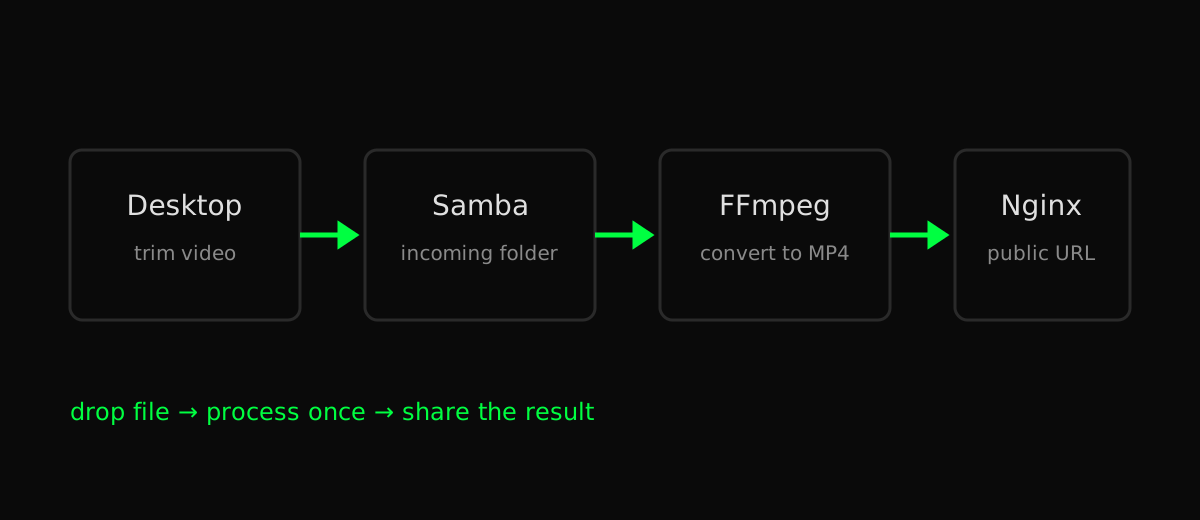
My solution was to trim a video with LosslessCut, drop it into a Samba share, convert it with ffmpeg when inotify detected a completed write, and serve only the processed directory through Nginx and Cloudflare.
Create a DNS entry for the subdomain on Cloudflare
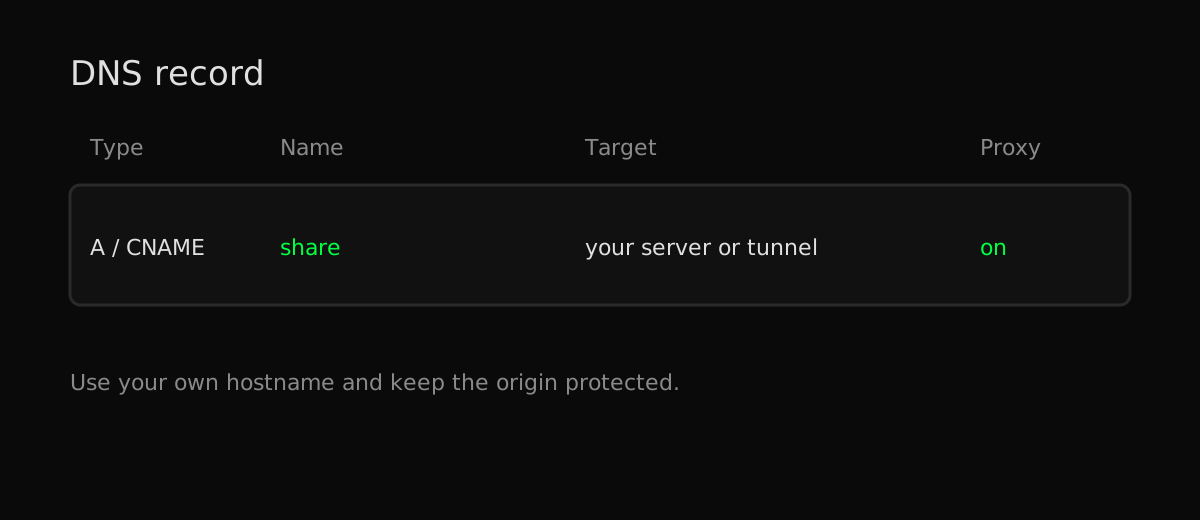
Create an A or CNAME record for your share hostname. Keep the origin behind a tunnel, firewall, or authenticated proxy; a Cloudflare proxy by itself is not access control.
Configuring Samba Server
Install Samba onto the server:
sudo apt install samba
Create a Samba password, this will be used to log in through the client:
sudo smbpasswd -a <user_name>
Make a backup of the Samba config file:
sudo cp /etc/samba/smb.conf /etc/samba/smb.conf.bak
Add an entry for the desired shared folder in the Samba config file:
sudo vim /etc/samba/smb.conf
[chis_server]
        path = /hdd/share
        read only = No
        valid users = <user_name>
This grants write access to the named user. Do not expose Samba directly to the public internet; restrict it to your LAN or private network and use the narrowest directory permissions that work.
Test the Samba config file for errors:
testparm
Load smb config files from /etc/samba/smb.conf
Loaded services file OK.
Server role: ROLE_STANDALONE
Restart the Samba service:
sudo service smbd restart
Mapping the network drive on Windows
Open the file browser and navigate to This PC and select the Computer tab. Locate Map network drive and enter the credentials.
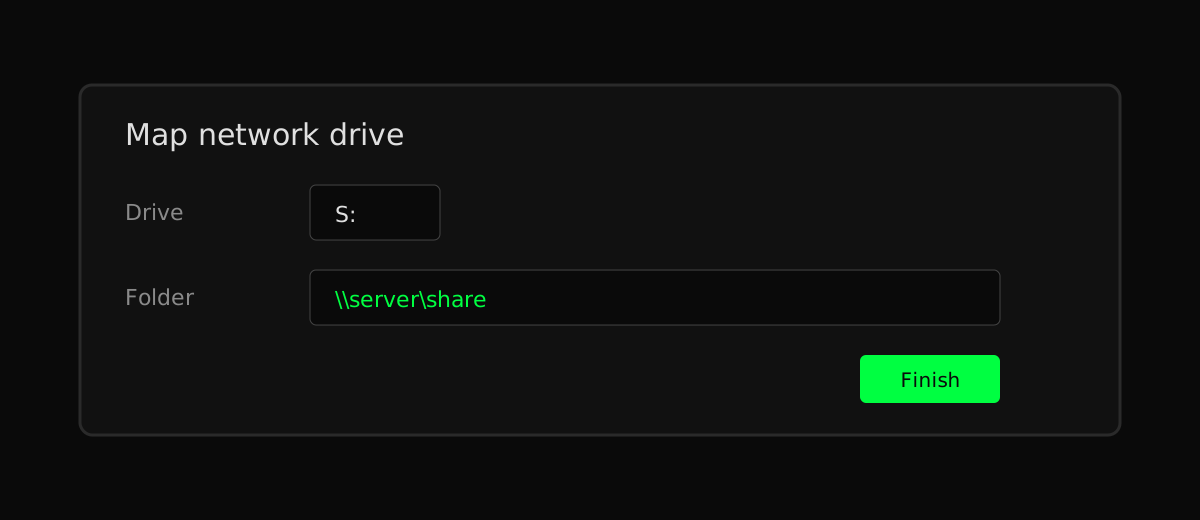
You should now be able to view the drive on Windows. Samba clients are also available for ChromeOS, macOS, Linux, iOS, and Android.
Configure Nginx
Create a Nginx config file:
sudo vim /etc/nginx/sites-available/share.chis.dev
server {
    listen          80;

    server_name share.chis.dev;
    root /hdd/share;

    location / {
        autoindex on;               # enable directory listing output
        autoindex_exact_size off;   # output file sizes rounded to kilobytes, megabytes, and gigabytes
        autoindex_localtime on;     # output local times in the directory
    }
}
This example assumes TLS terminates at a trusted reverse proxy or tunnel. If Nginx is directly internet-facing, configure HTTPS and authentication before publishing files.
Save and check integrity of config file:
sudo nginx -t
Enable the server
sudo ln -s /etc/nginx/sites-available/share.chis.dev /etc/nginx/sites-enabled
Restart nginx service
sudo systemctl restart nginx.service
Enabling Fancy Index for Nginx
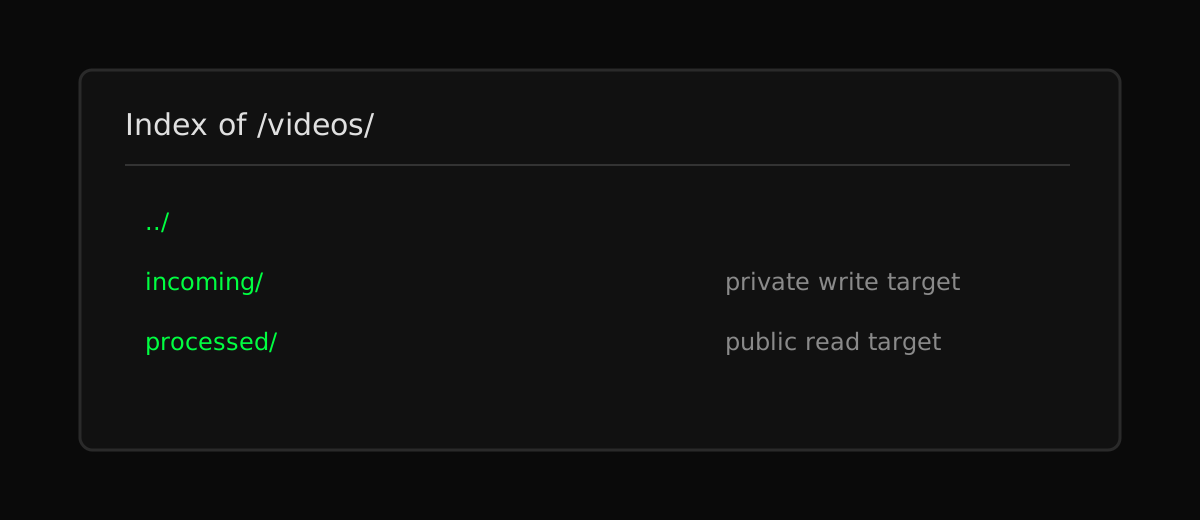
Install extras for Nginx:
sudo apt-get install nginx-extras
Edit the Nginx config file:
sudo vim /etc/nginx/sites-available/share.chis.dev
Replace the location section with:
location / {
    fancyindex on;
    fancyindex_localtime on;
    fancyindex_exact_size off;
    # Specify the path to the header.html and foother.html files, that are server-wise,
    # ie served from root of the website. Remove the leading '/' otherwise.
    fancyindex_header "/Nginx-Fancyindex-Theme-light/header.html";
    fancyindex_footer "/Nginx-Fancyindex-Theme-light/footer.html";
    # Ignored files will not show up in the directory listing, but will still be public.
    fancyindex_ignore "examplefile.html";
    # Making sure folder where these files are do not show up in the listing.
    fancyindex_ignore "Nginx-Fancyindex-Theme-light";
    # Maximum file name length in bytes, change as you like.
    # Warning: if you use an old version of ngx-fancyindex, comment the last line if you
    # encounter a bug. See https://github.com/Naereen/Nginx-Fancyindex-Theme/issues/10
    fancyindex_name_length 255;
}
Save and check integrity of config file:
sudo nginx -t
nginx: the configuration file /etc/nginx/nginx.conf syntax is ok
nginx: configuration file /etc/nginx/nginx.conf test is successful
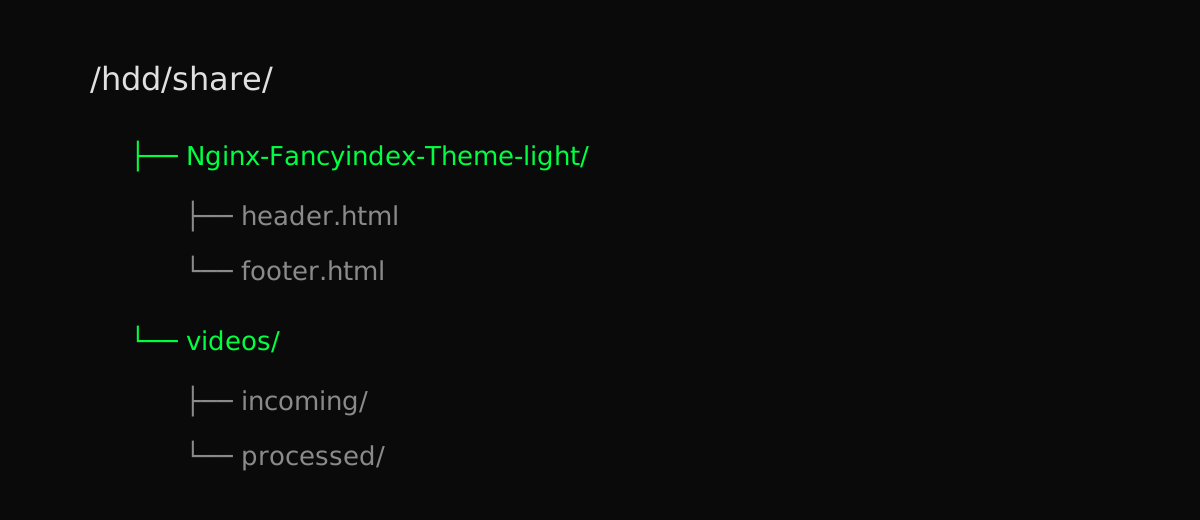
Download the Fancy Index Theme by Naereen and place the theme folder in the shared web root:
Restart the nginx service
sudo systemctl restart nginx.service
Automatic Video Conversion
Install inotify:
sudo apt install inotify-tools
Create the video conversion script:
cd /hdd/share/videos
touch discord-converter
chmod +x discord-converter
vim discord-converter
#!/bin/bash
set -u

TARGET=/hdd/share/videos/incoming
PROCESSED=/hdd/share/videos/processed

mkdir -p "$TARGET" "$PROCESSED"

inotifywait -m -e close_write -e moved_to --format '%w%f' "$TARGET" |
while IFS= read -r input; do
    [ -f "$input" ] || continue

    filename=${input##*/}
    stem=${filename%.*}
    output="$PROCESSED/$stem.mp4"
    temporary="$PROCESSED/.$stem.tmp.mp4"

    if ffmpeg -nostdin -y -i "$input" -c:v libx264 -c:a aac "$temporary"; then
        mv -- "$temporary" "$output"
        rm -- "$input"
    else
        rm -f -- "$temporary"
        printf 'conversion failed: %s\n' "$input" >&2
    fi
done
Using close_write avoids starting while a file is still being copied. Quoting paths, reading whole lines, writing to a temporary file, and moving the finished result into place also make spaces and partial conversions safer.
Make the folders to receive and process the incoming videos:
mkdir incoming processed
Make a discord-converter service:
sudo vim /lib/systemd/system/discord-converter.service
[Unit]
Description=discord.converter

[Service]
Type=simple
User=<service_user>
Group=<service_group>
WorkingDirectory=/hdd/share/videos
ExecStart=/hdd/share/videos/discord-converter
Restart=always
RestartSec=5
NoNewPrivileges=true
PrivateTmp=true

[Install]
WantedBy=multi-user.target
Enable and start the service:
sudo systemctl start discord-converter.service
sudo systemctl enable discord-converter.service
Test by dropping a file into the folder:
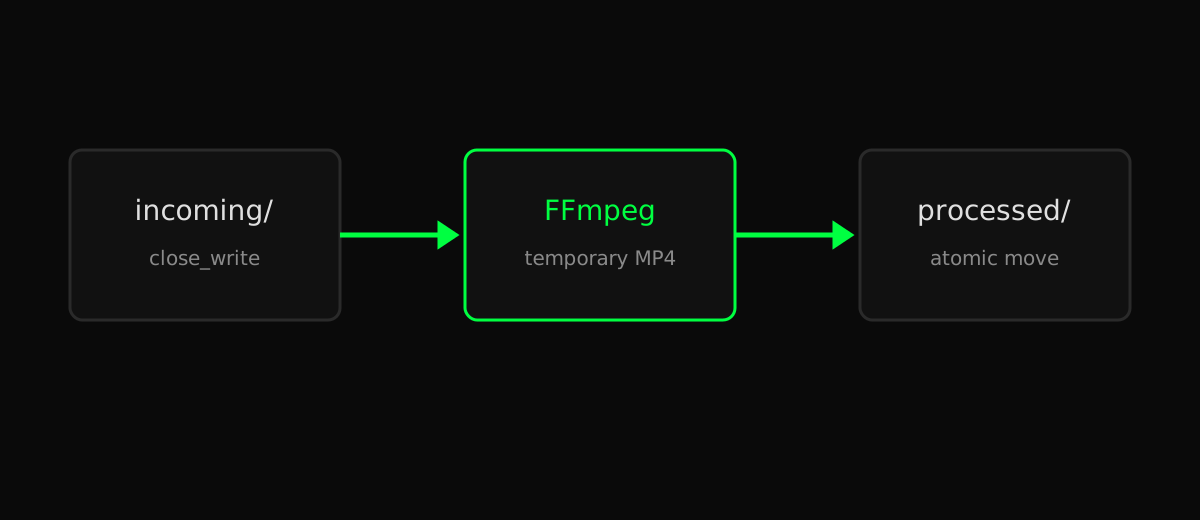
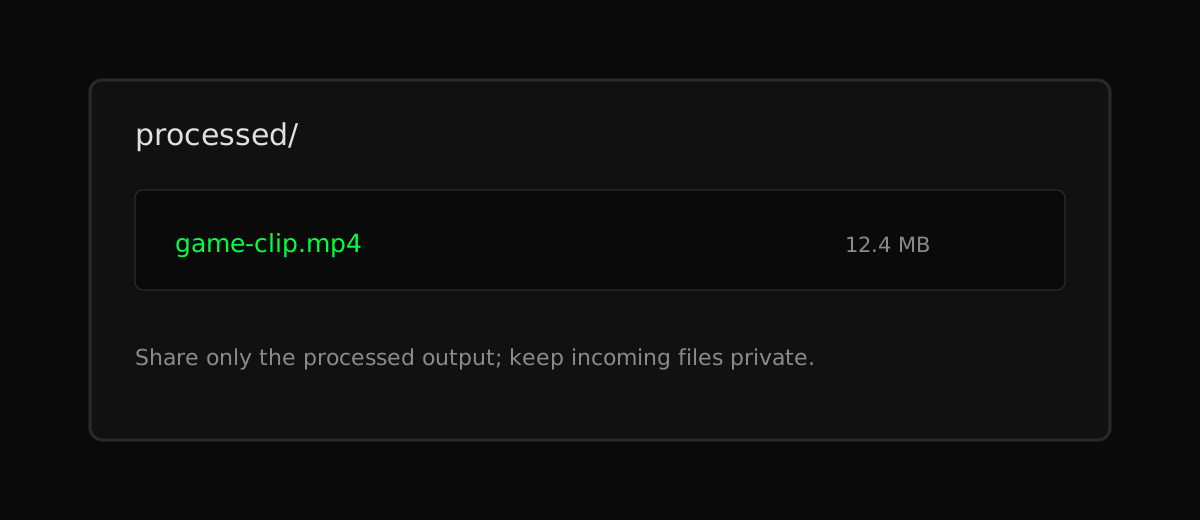
Wait for the video to process, then confirm that the output appears in the read-only processed directory exposed by your own hostname.
Processed result